 Trim/Strip
(Blending)
Trim/Strip
(Blending)
Synopsis
This operator removes leading and trailing whitespace, or other user defined characters, from the values of the selected nominal attributes.Description
The Trim/Strip operator creates new attributes from the selected nominal attributes by removing leading and trailing spaces from the nominal values. The required attributes can be selected through parameters. Please note that this operator only removes leading and trailing spaces from attribute values; spaces between a value are not removed. For example, values ' value 1', 'value 2 ' and ' value 3 ' will be trimmed to 'value 1', 'value 2' and 'value 3' respectively.
The strip trim method allows the removal of user defined characters via the strip chars parameter. An example of this can be seen in the second Example Process.
Input
 table input (Data Table)
This input port expects an ExampleSet. It is the output of the Subprocess operator in the attached Example Process. The output of other operators can also be used as input. The ExampleSet should have at least one nominal attribute because if there is no such attribute, the use of this operator does not make sense.
Output
- table output (Data Table)
The values of the selected nominal attributes are trimmed and the resultant ExampleSet is delivered through this port.
- original (Data Table)
The ExampleSet that was given as input is passed without changing to the output through this port. This is usually used to reuse the same ExampleSet in further operators or to view the ExampleSet in the Results View.
Parameters
- type
This parameter can be used to decide whether to include or exclude the selected Attributes.
- include attributes: This is the default option. It configures the Operator to keep the selected Attributes and remove the remainder.
- exclude attributes: This leads to the inverse behaviour. It configures the Operator to remove the selected Attributes and keep the remainder.
This also applies to special attributes if the also apply to special attributes (id, label..) parameter is set to true.
- attribute filter type
This parameter allows you to select the Attribute selection filter; the method you want to use for selecting Attributes. It has the following options:
- all attributes: This option selects all the Attributes of the ExampleSet, no Attributes are removed. This is the default option
- one attribute: This option allows the selection of a single Attribute. The Attribute is selected by the select attribute parameter.
- a subset: This option allows the selection of multiple Attributes through a list (see parameter select subset). If the meta data of the ExampleSet is known all Attributes are present in the list and the required ones can easily be selected.
- regular expression: This option allows you to specify a regular expression for the Attribute selection. The regular expression filter is configured via the parameters expression and exclude expression.
- type(s) of values: This option allows the selection of Attributes of particular type(s). The value type filter is configured via the parameter type of value.
- no missing values: This option selects all Attributes of the ExampleSet which do not contain a missing value in any Example. Attributes that have even a single missing value are removed.
- select attribute
The required Attribute can be selected from this option. The Attribute name can be selected from the drop down box of the parameter if the meta data is known. Otherwise, the attribute name can be typed in manually.
- select subset
The required Attributes can be selected from this option. This opens a new window with two lists. All Attributes are present in the left list, if the meta data is known. They can be shifted to the right list, which is the list of selected Attributes that will make it to the output port. If the meta data is unknown, you can manually type in attribute names and use the green plus-button to add them to the list of selected attributes.
- expression
Attributes whose names match this expression will be selected. The expression can be specified through the button on the right that will open the " gui.dialog.parameter.regexp.title" menu. This menu gives a good idea of regular expressions and it also allows you to try different expressions and preview the results simultaneously.
- exclude expression
This option allows you to specify a regular expression. Attributes matching this expression will be filtered out even if they match the first expression (expression that was specified via the expression parameter).
- type of value
This option allows to select Attribute types. A subset of the following types can be chosen: real, integer, date-time, time, binominal, non-binominal.
- also apply to special attributes (id, label..)
Special Attributes are Attributes with roles (e.g. id, label..). By default all special Attributes are delivered to the output port regardless of the conditions in the Trim/Strip Operator. If this parameter is set to true, special Attributes are also tested against the specified conditions and only those Attributes are selected that match the conditions.
- trim method
Select between trim of whitespace and custom strip characters.
- trim: This option removes whitespace surrounding the values of the selected nominal attributes.
- strip: This option removes the characters defined via the strip chars parameter from the beginning and end of the values of the selected nominal attributes.
- strip charsSelect the characters that should be removed by the strip trim method.
Tutorial Processes
Removing leading and trailing spaces from attribute values
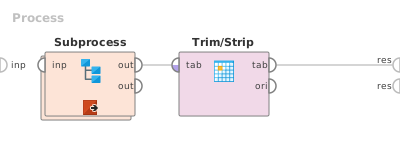
This Example Process starts with the Subprocess operator. The operator chain inside the Subprocess operator generates an ExampleSet for this process. The explanation of this inner chain of operators is not relevant here. A breakpoint is inserted here so that you can have a look at the ExampleSet before the application of the Trim/Strip operator. You can see that this ExampleSet has two nominal attributes 'att1' and 'att2'. You can see that some values of these attributes have leading and trailing spaces. The Trim/Strip operator is applied on this ExampleSet to remove these spaces. All parameters are used with default values. Run the process and compare the resultant ExampleSet with the original ExampleSet. You can clearly see that the leading and trailing spaces have been removed.
Removing leading and trailing curly braces from attribute values
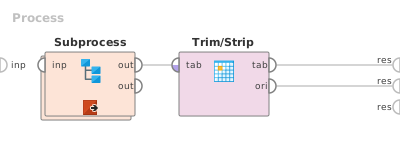
This Example Process starts with the Subprocess operator. The operator chain inside the Subprocess operator generates an ExampleSet for this process. The explanation of this inner chain of operators is not relevant here. A breakpoint is inserted here so that you can have a look at the ExampleSet before the application of the Trim/Strip operator. You can see that this ExampleSet has two nominal attributes 'att1' and 'att2'. You can see that some values of these attributes have leading and trailing curly braces. The Trim/Strip operator is applied on this ExampleSet to remove these braces. The trim method is set to strip with '{' and '}' selected as strip chars. Run the process and compare the resultant ExampleSet with the original ExampleSet. You can clearly see that the leading and trailing curly braces have been removed.