 Text to Nominal
(AI Studio Core)
Text to Nominal
(AI Studio Core)
Synopsis
This operator changes the type of selected text attributes to nominal. It also maps all values of these attributes to corresponding nominal values.Description
The Text to Nominal operator converts all text attributes to nominal attributes. Each text value is simply used as a nominal value of the new attribute. If the value is missing in the text attribute, the new value will also be missing.
Input
 example set input (Data table)
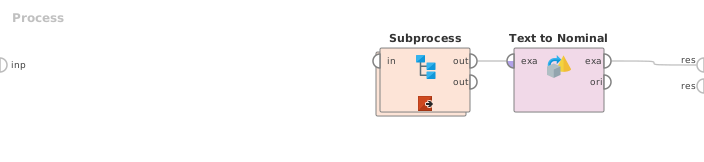
This input port expects an ExampleSet. It is the output of the Subprocess operator in the attached Example Process. The output of other operators can also be used as input. It is essential that meta data should be attached with the data for the input because attributes are specified in their meta data. The ExampleSet should have at least one text attribute because if there is no such attribute, the use of this operator does not make sense.
Output
- example set output (Data table)
The selected text attributes are converted to nominal and the resultant ExampleSet is output of this port.
- original (Data table)
The ExampleSet that was given as input is passed without changing to the output through this port. This is usually used to reuse the same ExampleSet in further operators or to view the ExampleSet in the Results Workspace.
Parameters
- attribute filter typeThis parameter allows you to select the attribute selection filter; the method you want to use for selecting attributes on which you want to apply Text to Nominal conversion. It has the following options:
- all: This option simply selects all the attributes of the ExampleSet. This is the default option.
- single: This option allows selection of a single attribute. When this option is selected another parameter (attribute) becomes visible in the Parameters panel. (Since RapidMiner 6.0.4 the Operator will fail if a selected Attribute is not in the ExampleSet)
- subset: This option allows selection of multiple attributes through a list. All attributes of the ExampleSet are present in the list; required attributes can be easily selected. This option will not work if meta data is not known. When this option is selected another parameter becomes visible in the Parameters panel. (Since RapidMiner 6.0.4 the Operator will fail if a selected Attribute is not in the ExampleSet)
- regular expression: This option allows you to specify a regular_expression for attribute selection. When this option is selected some other parameters (regular expression,use except expression) become visible in the Parameters panel.
- value type: This option allows selection of all the attributes of a particular type. It should be noted that types are hierarchical. For example real and integer types both belong to the numeric type. Users should have basic understanding of type hierarchy when selecting attributes through this option. When this option is selected some other parameters (value type,use value type exception) become visible in the Parameters panel.
- block type: This option is similar in working to the value type option. This option allows selection of all the attributes of a particular block type. When this option is selected some other parameters (block type, use block type exception) become visible in the Parameters panel.
- no missing values: This option simply selects all the attributes of the ExampleSet which don't contain a missing value in any example. Attributes that have even a single missing value are removed.
- numeric value filter: When this option is selected another parameter (numeric condition) becomes visible in the Parameters panel. All numeric attributes whose examples all satisfy the mentioned numeric condition are selected. Please note that all nominal attributes are also selected irrespective of the given numerical condition.
- attributeThe desired attribute can be selected from this option. The attribute name can be selected from the dropdown box of attribute parameter if the meta data is known.
- attributesThe required attributes can be selected from this option. This opens a new window with two lists. All attributes are present in the left list and can be shifted to the right list which is the list of selected attributes on which the conversion from nominal to numeric will take place; all other attributes will remain unchanged.
- regular expressionThe attributes whose name match this expression will be selected. Regular expression is a very powerful tool but needs a detailed explanation to beginners. It is always good to specify the regular expression through the edit and preview regular expression menu. This menu gives a good idea of regular expressions and it also allows you to try different expressions and preview the results simultaneously.
- use except expressionIf enabled, an exception to the first regular expression can be specified. When this option is selected another parameter (except regular expression) becomes visible in the Parameters panel.
- except regular expressionThis option allows you to specify a regular expression. Attributes matching this expression will be filtered out even if they match the first regular expression (regular expression that was specified in the regular expression parameter).
- value typeThe type of attributes to be selected can be chosen from a dropdown list. One of the following types can be chosen: nominal, text, binominal, polynominal, file_path.
- use value type exception If enabled, an exception to the selected type can be specified. When this option is enabled, another parameter (except value type) becomes visible in the Parameters panel.
- except value typeThe attributes matching this type will not be selected even if they match the previously mentioned type i.e. value type parameter's value. One of the following types can be selected here: nominal, text, binominal, polynominal, file_path.
- block typeThe block type of attributes to be selected can be chosen from a dropdown list. The only possible value here is 'single_value'
- use block type exceptionIf enabled, an exception to the selected block type can be specified. When this option is selected another parameter (except block type) becomes visible in the Parameters panel.
- except block typeThe attributes matching this block type will be not be selected even if they match the previously mentioned block type i.e. block type parameter's value.
- numeric conditionThe numeric condition for testing examples of numeric attributes is specified here. For example the numeric condition '> 6' will keep all nominal attributes and all numeric attributes having a value of greater than 6 in every example. A combination of conditions is possible: '> 6 && < 11' or '<= 5 || < 0'. But && and || cannot be used together in one numeric condition. Conditions like '(> 0 && < 2) || (>10 && < 12)' are not allowed because they use both && and ||. Use a blank space after '>', '=' and '<' e.g. '<5' will not work, so use '< 5' instead.
- include special attributesThe special attributes are attributes with special roles which identify the examples. In contrast, regular attributes simply describe the examples. Special attributes are: id, label, prediction, cluster, weight and batch. By default all special attributes selected irrespective of the conditions in the Unknown operator. If this parameter is set to true, Special attributes are also tested against conditions specified in the Unknown operator and only those attributes are selected that satisfy the conditions.
- invert selectionIf this parameter is set to true, it acts as a NOT gate, it reverses the selection. In that case all the selected attributes are unselected and previously unselected attributes are selected. For example if attribute 'att1' is selected and attribute 'att2' is unselected prior to checking of this parameter. After checking of this parameter 'att1' will be unselected and 'att2' will be selected.
Tutorial Processes
Introduction to the Text to Nominal operator
This Example Process starts with the Subprocess operator which provides an ExampleSet. A breakpoint is inserted here so that you can have a look at the ExampleSet. You can see that the ExampleSet has three text attributes i.e. 'att1', 'att2' and 'att3'. The Text to Nominal operator is applied on this data set. The attribute filter type parameter is set to 'single' and the attribute parameter is set to 'att1'. Thus this operator converts the type of the 'att1' attribute from text to nominal. You can verify this by seeing the results in the Meta Data View in the Results Workspace.